

Editing, Voiding and Deleting
Editing an invoice
Section titled “Editing an invoice”Open the invoice and choose Edit invoice. Editing keeps the invoice’s actual status - a pending invoice stays pending while you fix a line item; it doesn’t revert to draft.
While editing you can also:
- Change the client - as long as the invoice is unpaid, it can be moved to a different client. Handy for the invoice raised against the wrong entity in a group, or the contact who turned out to be someone else’s accounts department.
- Manage attachments - add or remove supporting files (quotes, photos, delivery dockets) that accompany the invoice.
- Use all the same line-item tools as creating - discounts, description-only rows, negative amounts.
Edits sync to your accounting system like any other change.
Voiding an invoice
Section titled “Voiding an invoice”Voiding cancels an invoice that shouldn’t be collected, while keeping the record.
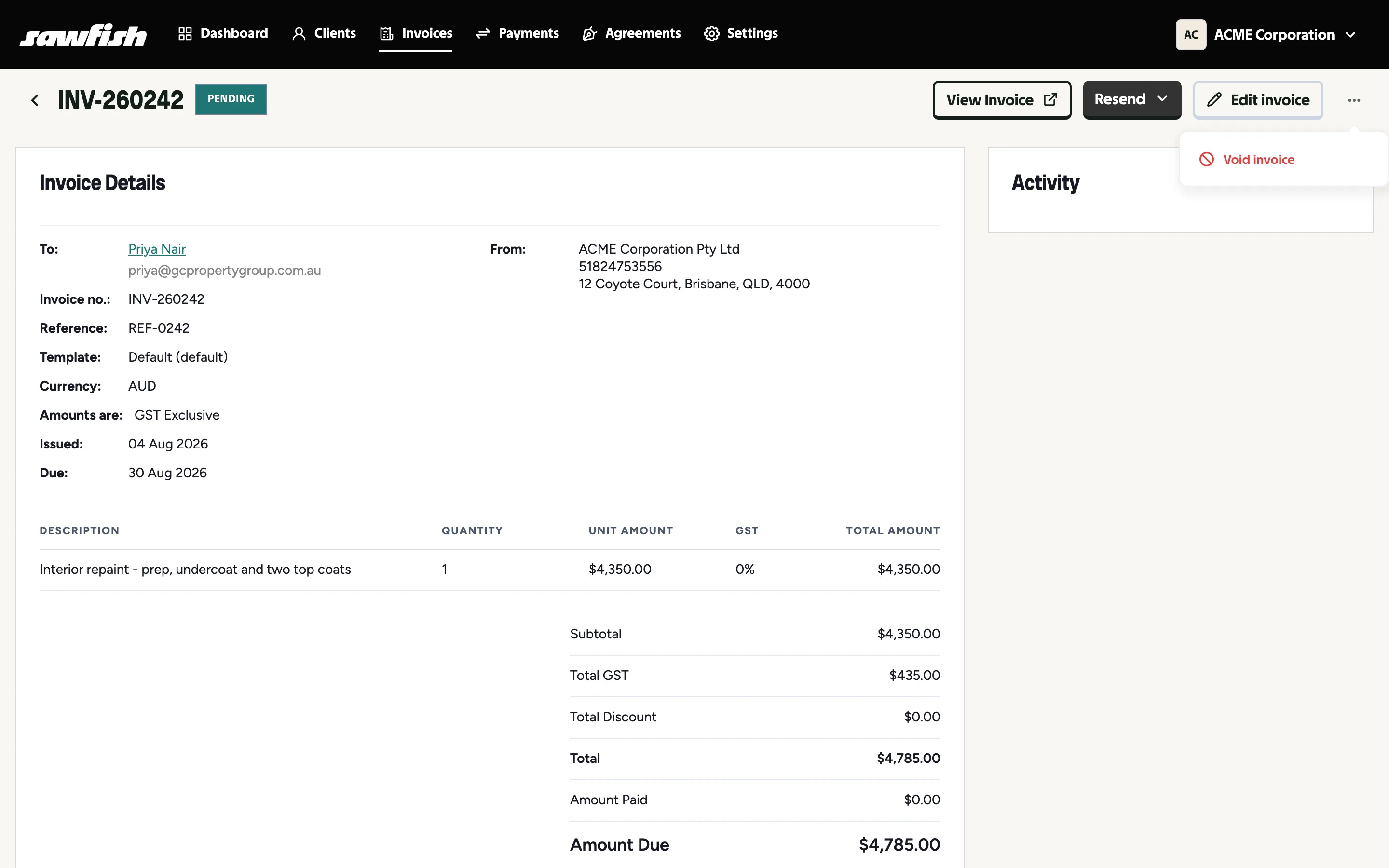
- Open the invoice.
- From the header menu, choose Void.
- Sawfish voids it locally and in Xero/MYOB, stops reminders, and disables its payment link.
Pending invoices can be voided; use void (not deletion) for anything a client may have seen.
Deleting a draft
Section titled “Deleting a draft”Drafts haven’t reached the client or your accounting system’s sequence, so they can simply be deleted from the invoice header menu.
Recording a manual payment
Section titled “Recording a manual payment”Client paid outside Sawfish - bank transfer direct to you, cash, EFTPOS?
- Open the invoice.
- Choose Record manual payment from the header menu.
- Enter the amount and date.
The invoice is marked paid, reminders stop, and the payment is recorded in your accounting system - same as an online payment, just without the gateway.