

Reconciling Sawfish Payments in Xero and MYOB
Sawfish doesn’t add a surcharge, so your customer pays exactly the invoice amount. The processing fee is taken out before the money reaches your bank, so each deposit is smaller than the invoices it pays.
You don’t have to work out the difference. Sawfish posts the payments and the fee to your accounting system for you, so your bank deposit matches what’s already there.
| Invoice paid | Fee | Bank deposit | |
|---|---|---|---|
| Example | $1,174.04 | $4.40 | $1,169.64 |
| What Sawfish posts | Payment of $1,174.04 against the invoice | Spend money of $4.40 | You match the deposit to both |
Choose how you’re paid out
Section titled “Choose how you’re paid out”Your organisation is paid out in one of two ways.
| Daily payout | Individual payments | |
|---|---|---|
| Works with | Xero | Xero and MYOB |
| Deposits | One deposit each morning for everything released since the last payout | One deposit per payment, in two runs a day |
| Reconciling | One click. The deposit matches a single transfer | Match each deposit to its payment and fee |
| Best for | Anyone with more than a few payments a day | Low volumes |
We recommend the daily payout if you use Xero. It turns a day of payments into one line in your bank feed.
Xero: daily payout (one-click reconciliation)
Section titled “Xero: daily payout (one-click reconciliation)”Once your payout lands in the bank, Sawfish posts it to Xero as three entries:
- A batch payment for the full amount, one line per invoice, into a bank account called Sawfish Clearing Account. Sawfish creates it the first time.
- A spend money transaction for the fees, paid from the clearing account.
- A bank transfer for the net amount from the clearing account to your bank account.
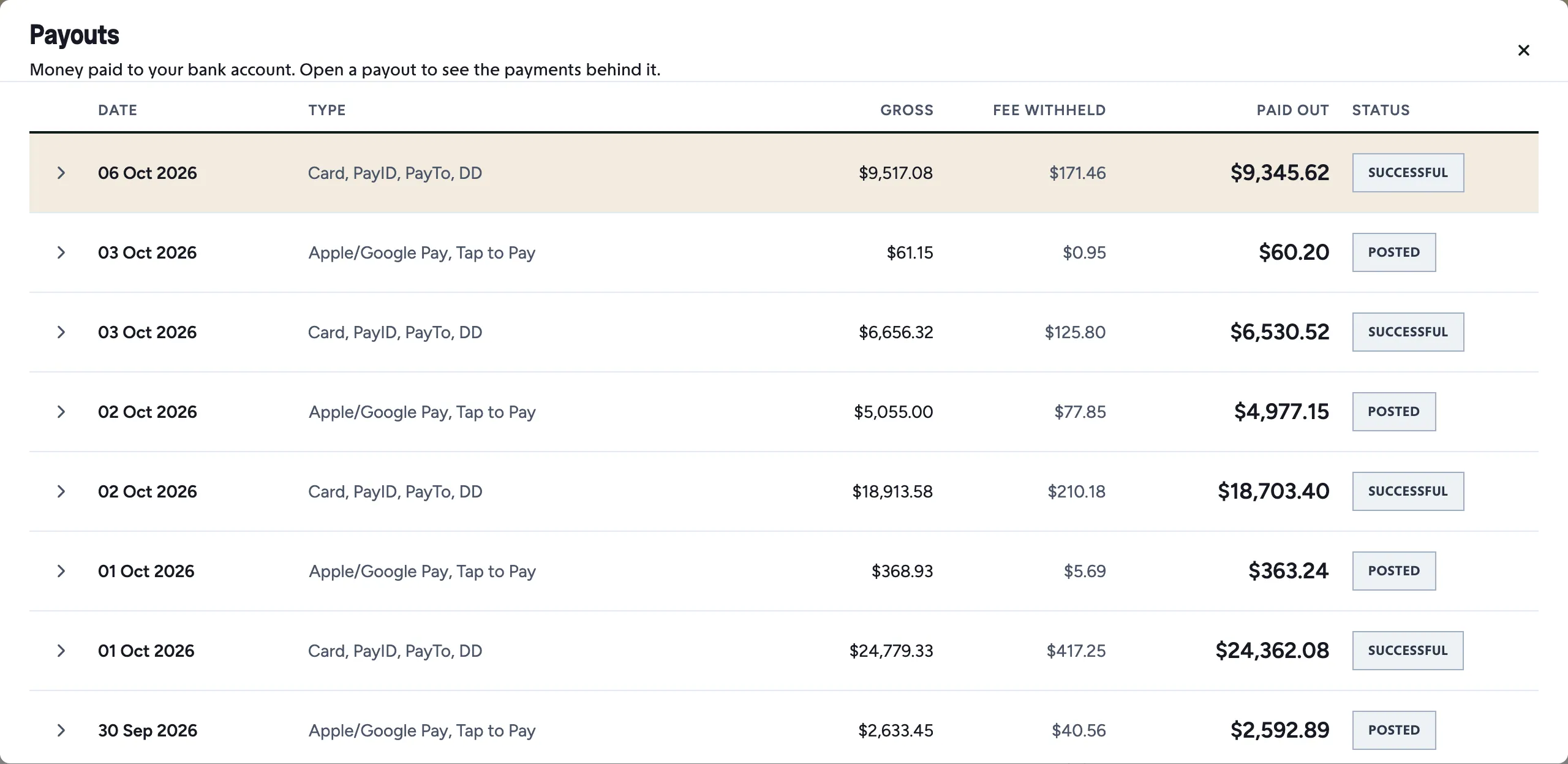
You can see the same payout in Sawfish. Go to Payouts to see each deposit with its gross amount, the fee withheld and the amount paid out:
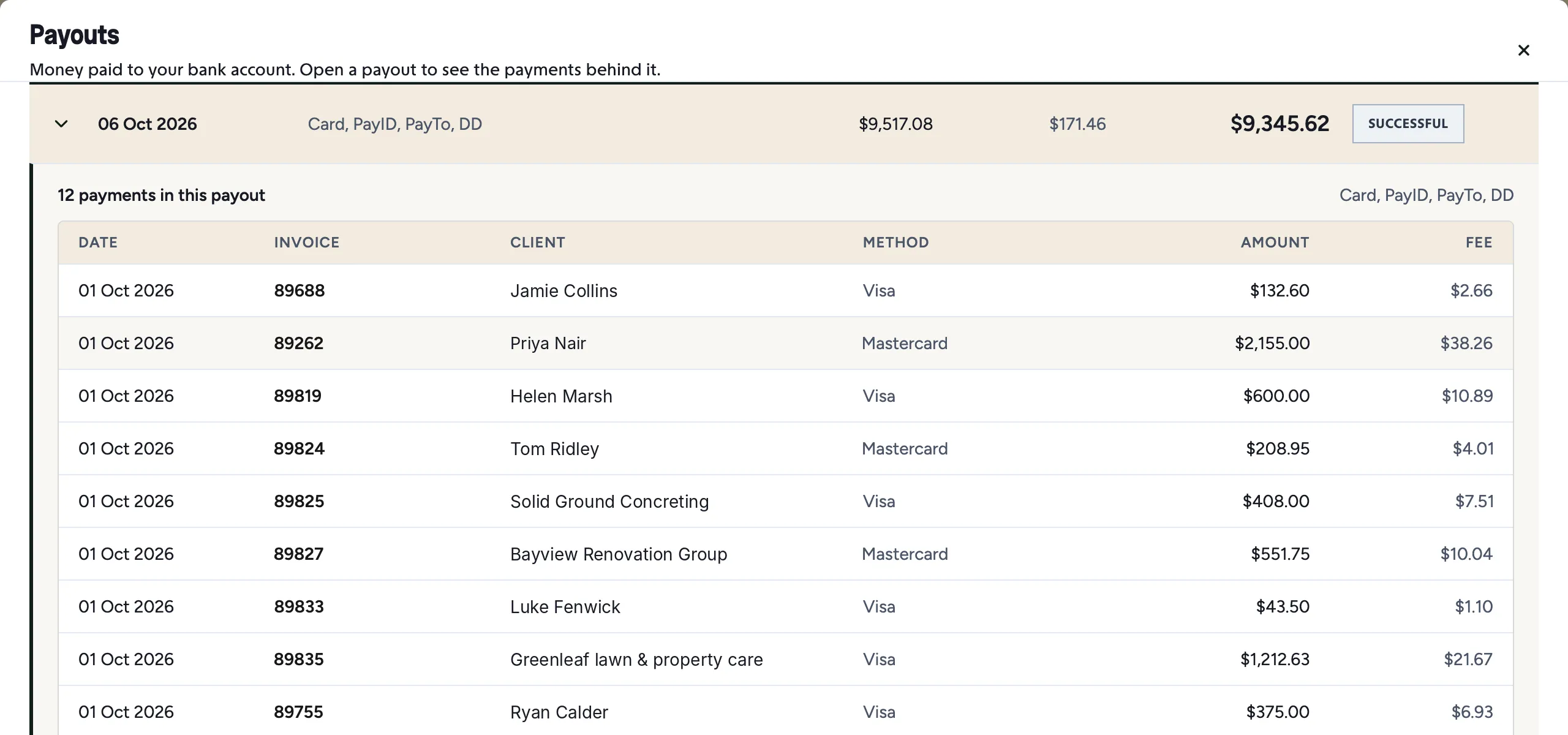
Open a payout to see every payment inside it. This one deposit covers 12 payments, so it’s a single line in your bank feed:
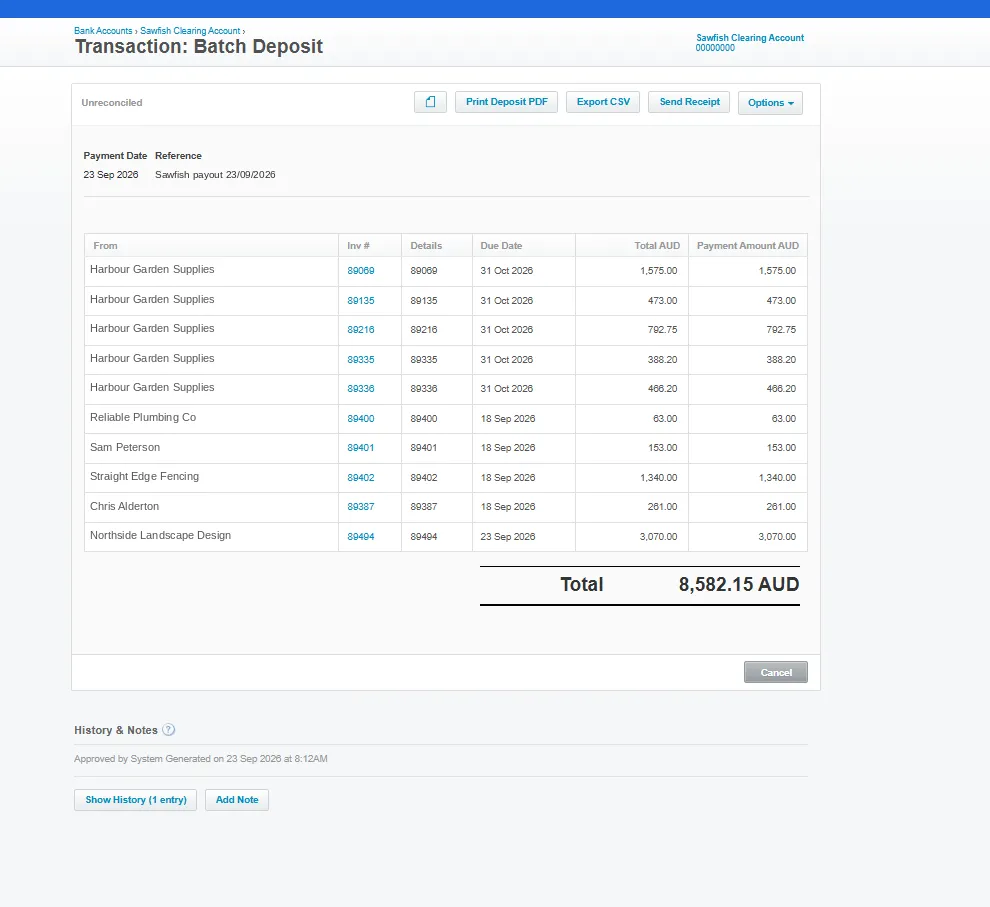
Open the batch payment in Xero and you’ll see the same invoices, paid in that payout:
The bank transfer equals your deposit exactly, so Xero suggests it as the match:

To reconcile:
- In Xero, go to Accounting → Bank accounts and open Reconcile for your bank account.
- Find the Sawfish deposit. Xero suggests the matching Bank Transfer from Sawfish Clearing Account.
- Click OK.
That’s the whole payout reconciled, however many invoices were in it. The reference reads “Sawfish payout” and the date.
If you switch to the daily payout part-way through, payments Sawfish already posted individually aren’t posted again. For that first payout only the fee is added, and you match the bank line to those payments plus the fee. Sawfish adds a note to say so.
Xero: individual payments
Section titled “Xero: individual payments”For each payment Sawfish posts, in the bank account you selected under Settings → Accounting:
- A payment against the invoice for the full invoice amount.
- A spend money transaction for the fee. The contact is Sawfish, the reference is the invoice number, and it’s posted to the fee account you chose under Settings → Accounting → Payment Methods → Chart of Accounts.
To reconcile:
- In Xero, open Reconcile for your bank account and find the Sawfish deposit.
- Choose Find & Match.
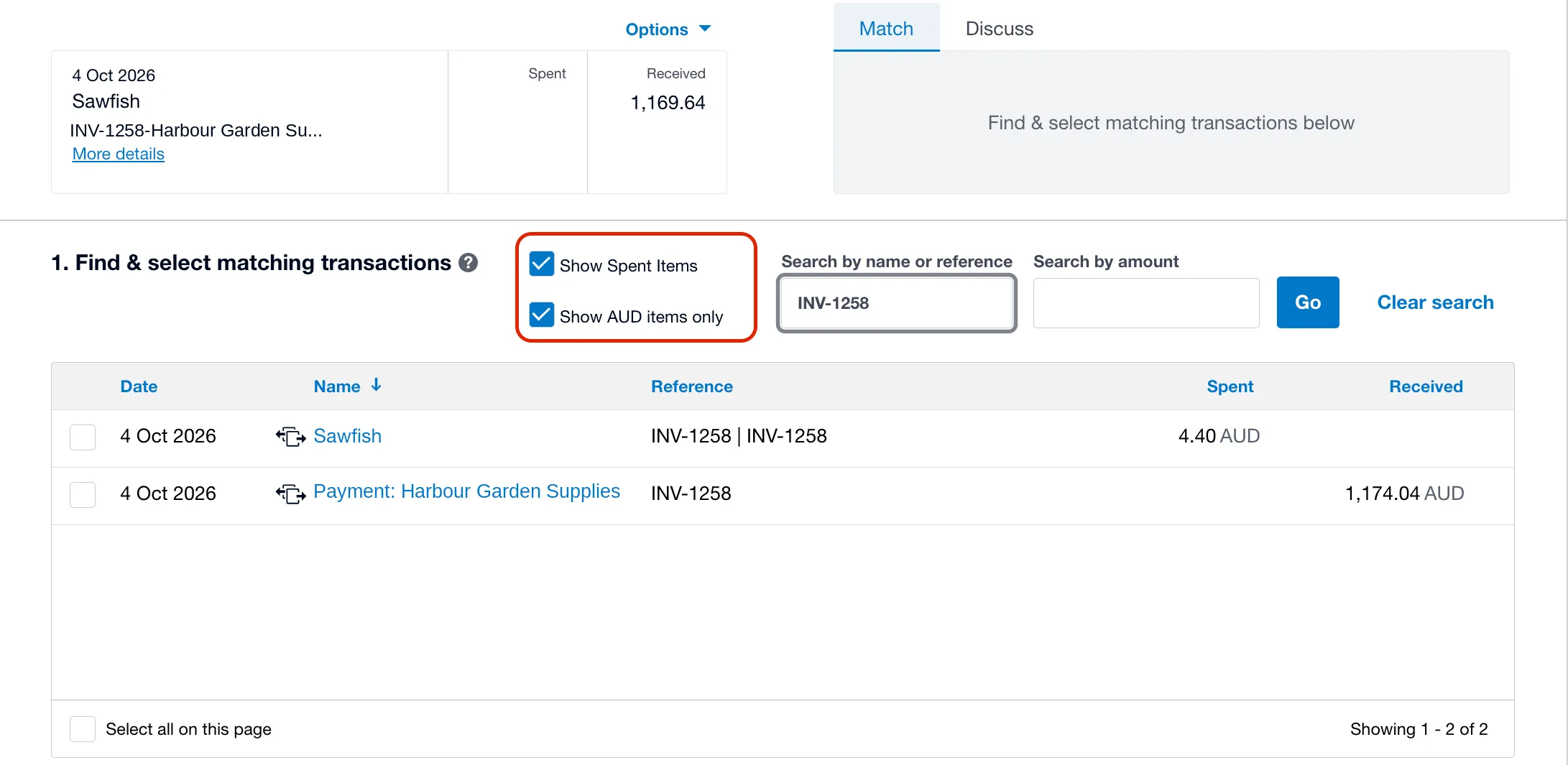
- Tick Show Spent Items, so the fee appears in the list.
- Search for the invoice number, then tick both the payment and the Sawfish fee. Together they equal the deposit.
- Click Reconcile.
MYOB is paid out as individual payments, so each bank deposit is one payment and names the invoice. For each payment Sawfish posts a customer payment for the full invoice amount, applied to the invoice, into Undeposited Funds. That’s why it appears in Prepare Bank Deposit.
How the fee is posted depends on one setting, Record fees in Undeposited Funds, under Settings → Accounting → Payment Methods → Chart of Accounts. It’s only shown to MYOB organisations.
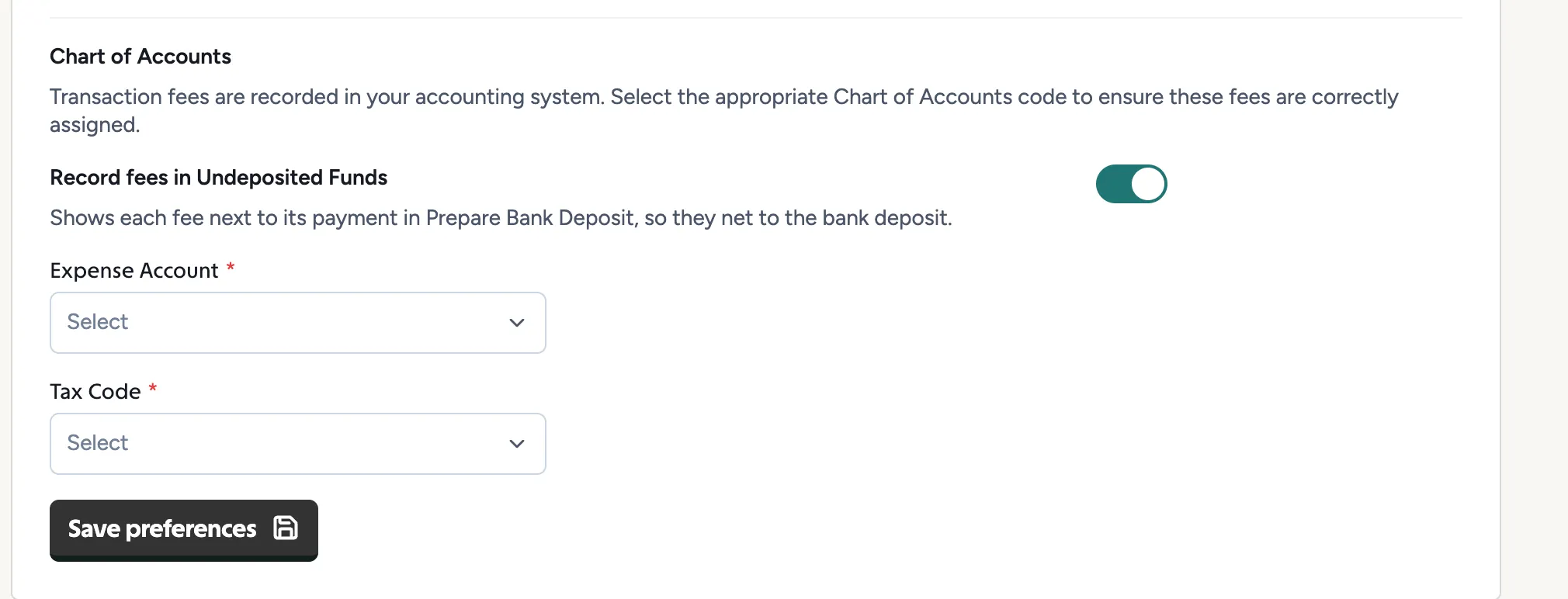
| Toggle on (recommended) | Toggle off | |
|---|---|---|
| Fee is posted as | A negative line in Undeposited Funds | A spend money paid electronically |
| Where it appears in MYOB | Prepare Bank Deposit, next to its payment | Prepare Electronic Payments |
| To reconcile | Tick the payment and its fee in one deposit | Record the payment and the fee separately, then match both |
Either way the fee goes to the Sawfish supplier, on the expense account and tax code you’ve set, and it’s the exact amount Sawfish deducted.
Toggle on: one deposit per payment
Section titled “Toggle on: one deposit per payment”- In MYOB, go to Banking → Prepare Bank Deposit.
- Tick the payment for the invoice and the negative Sawfish fee line beside it. The total equals the bank deposit, for example $9,354.08 less $164.96 is $9,189.12.
- Click Record, then match the bank line to that deposit.
The setting only changes fees posted after you switch it on. Fees already posted stay in Prepare Electronic Payments.
Toggle off: payment and fee separately
Section titled “Toggle off: payment and fee separately”- In Prepare Bank Deposit, tick the payment for the invoice and record it.
- In Prepare Electronic Payments, record the Sawfish fee in its own run, separate from your supplier and staff payments. Don’t upload the bank file it creates, because Sawfish has already taken the fee.
- Match the bank line to both. Together they equal the deposit.
GST on the fee
Section titled “GST on the fee”Your rates include GST, so the fee posted to your books includes it too. In Xero it’s posted as GST on Expenses, and in MYOB as tax inclusive with the tax code you’ve chosen, so you can claim the credit in your BAS. The total in your books is always the amount Sawfish deducted.
If the numbers don’t match
Section titled “If the numbers don’t match”- No fee entry. The fee is only posted if you’ve chosen a fee account under Settings → Accounting → Payment Methods → Chart of Accounts. If it’s blank, the payment is posted but not the fee, and your deposit will look short. Choose an account, then ask the Sawfish team to repost.
- MYOB fee is 10% higher than the fee in Sawfish. Fees posted to MYOB before 6 October 2026 weren’t marked tax inclusive, so MYOB added GST on top. Open the Sawfish spend money in MYOB, tick Tax Inclusive and save. It then matches. Fees posted since are correct.
- Deposit hasn’t arrived. Payments show “Paid - pending settlement” until the money clears. Wait for the deposit to appear in your bank feed before reconciling.
- Refunds. A refund is posted separately.
- Payments made outside Sawfish. If a customer pays you directly by bank transfer, reconcile it in your accounting system as normal. Sawfish marks the invoice paid once it syncs.
- Still out? Email hello@sawfish.com.au with the invoice number or payout date.