

Creating Your Account
Sign up
Section titled “Sign up”Head to the Sawfish app and choose Sign up in the top-right of the login screen. Creating your account is step one of the guided onboarding - the sidebar shows what’s ahead: Create Account → Connect Accounting System → Company Information → Payment Settings.
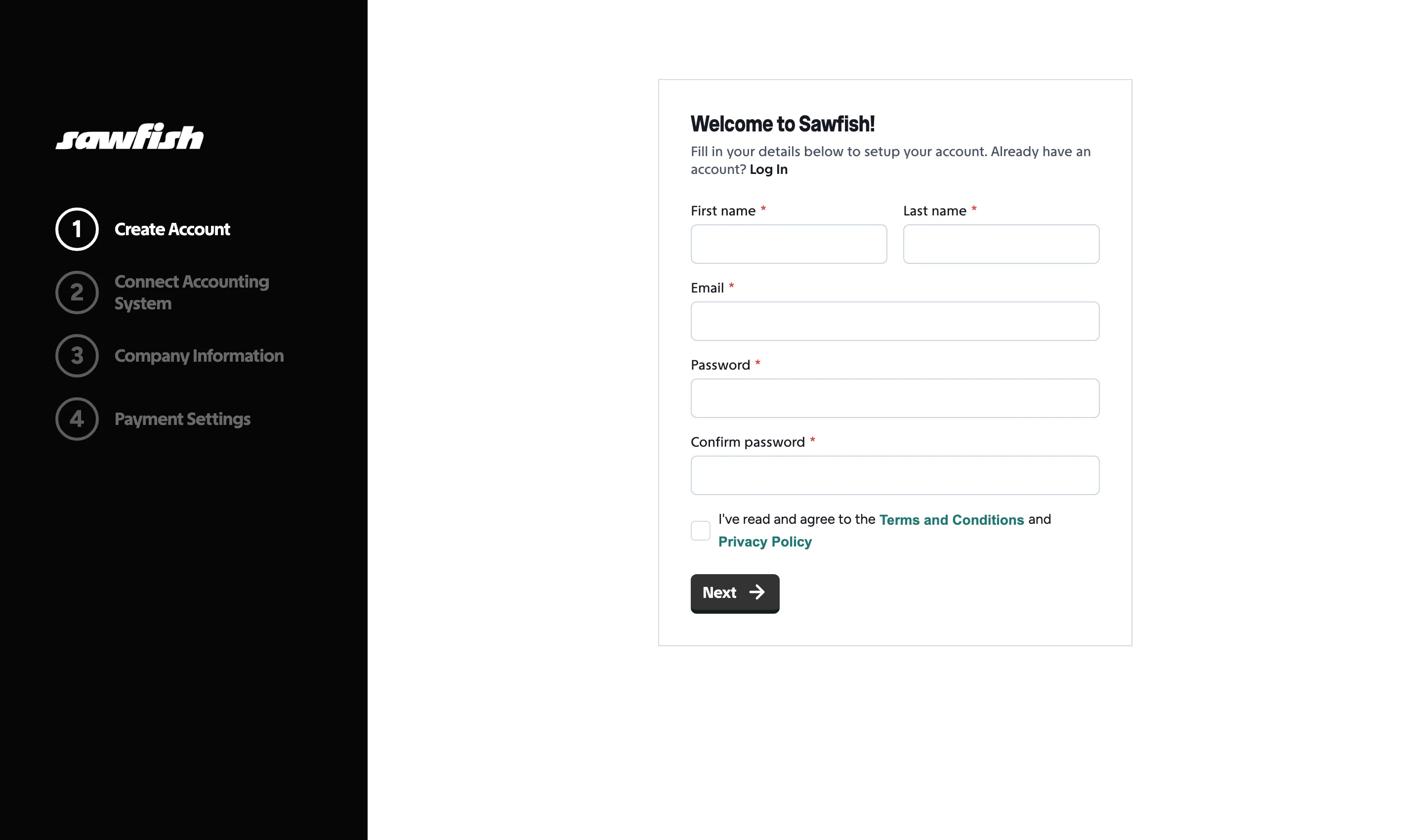
Enter your first and last name, email, and a password, and accept the Terms and Conditions. After signing up, check your inbox for a verification email and confirm your address before continuing - then carry on with setting up your organisation.
Signing in
Section titled “Signing in”Sign in with your email and password.
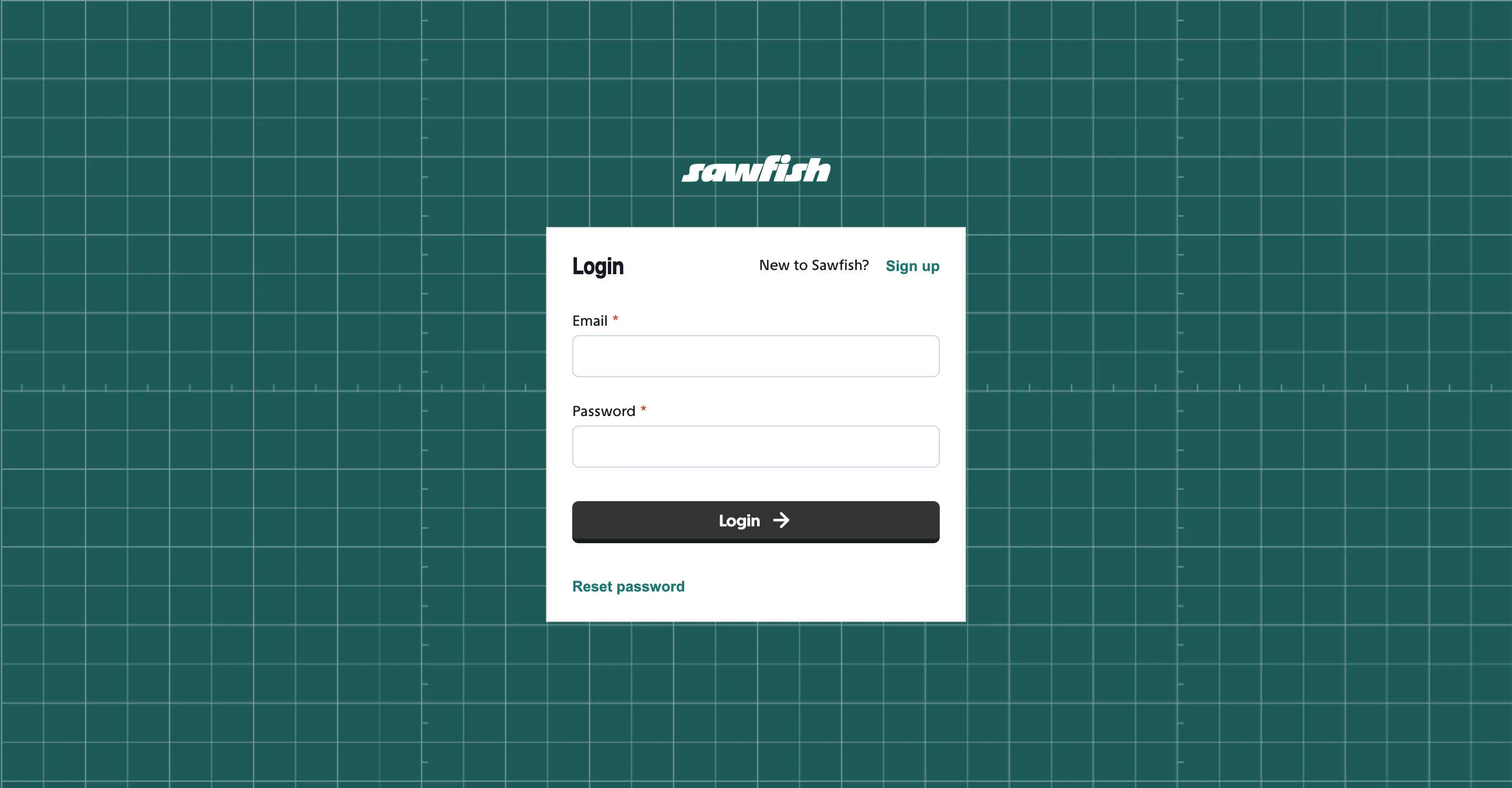
Sign-ins are protected by two-factor authentication (2FA). After entering your password you can verify with either:
- SMS code - a 6-digit code sent to your registered phone number, or
- Authenticator app - a 6-digit code from an authenticator app such as Google Authenticator or 1Password.
Enter the code and you’re in. The code submits automatically once all six digits are entered.
Passing the 2FA check marks the device you signed in on as trusted for 24 hours - sign in again on the same device within that window and Sawfish skips the code. After 24 hours, or on any new device or browser, you’ll be asked for a code as usual.
Reset your password
Section titled “Reset your password”Forgotten your password? Use Reset password on the login screen and follow the email you receive.
Next step
Section titled “Next step”Once you’re signed in for the first time, Sawfish walks you through setting up your organisation.