

Sending and Signing
Sending
Section titled “Sending”Send the agreement from its screen; the status moves to Sent and the client receives a secure link. The link is protected - before viewing, the client clicks Send Code and a 6-digit access code goes to the contract’s primary contact email (shown to them masked, so the address itself is never exposed). Public agreement pages only expose what’s needed to review and sign.
What the client does
Section titled “What the client does”The link opens a branded welcome screen explaining what a Payment Agreement is, then walks them through it:
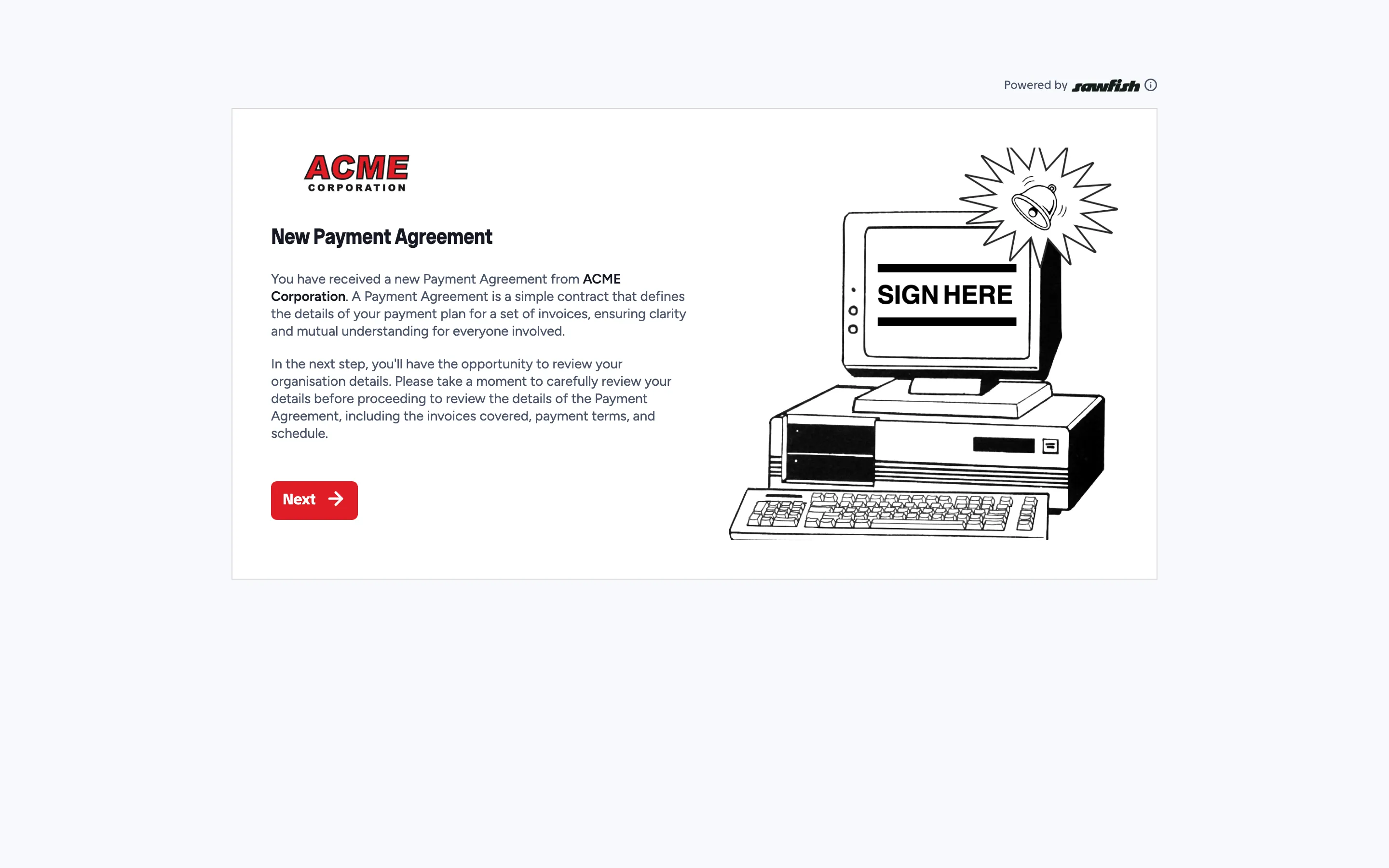
- Reviews their organisation details, then the agreement - the project, invoices covered, payment terms, and schedule.
- Adds a payment method as part of signing - credit card, PayTo, or bank details, depending on what you’ve enabled.
- PayTo agreements are validated with the client’s bank before signing completes, so an active agreement always has a working payment method behind it.
- Accepts the terms - the terms you set on the agreement, plus the Sawfish platform terms (linked from the same screen). Their acceptance is recorded with the signature.
- Signs - drawing or typing their signature.
“To action” tags guide the client through the page, DocuSign-style - every field or step still waiting on them is flagged, so nothing gets missed on longer agreements.
When they finish, the agreement becomes Active, you’re notified, and both sides can access the signed document.
While you wait
Section titled “While you wait”- The agreement shows as Sent with its expiry counting down - if the client doesn’t sign in time, it lapses and can be re-sent.
- Resend agreement summary emails the link again.
- Client View shows you exactly what they’re looking at if they call with questions.
After signing
Section titled “After signing”- View signed document - the executed agreement, with who signed and when.
- The payment schedule starts running - see Managing active agreements.