

Setting Up Your Organisation
After creating your account, Sawfish walks you through setting up your organisation. The steps are shown in the sidebar as you go - you can complete them in one sitting or come back later, and Sawfish remembers where you’re up to.
Step 2 - Connect your accounting system
Section titled “Step 2 - Connect your accounting system”Choose how you want to run invoicing:
- Connect Xero or Connect MYOB - Sawfish syncs invoices, clients, payments and account codes both ways with your accounting system.
- Sawfish invoicing - skip the connection entirely and use Sawfish as your invoicing system. You can connect Xero or MYOB later at any time.
See Connecting Your Accounting Software for the details of what syncs and when.
Connected Xero or MYOB? Turn their reminders off
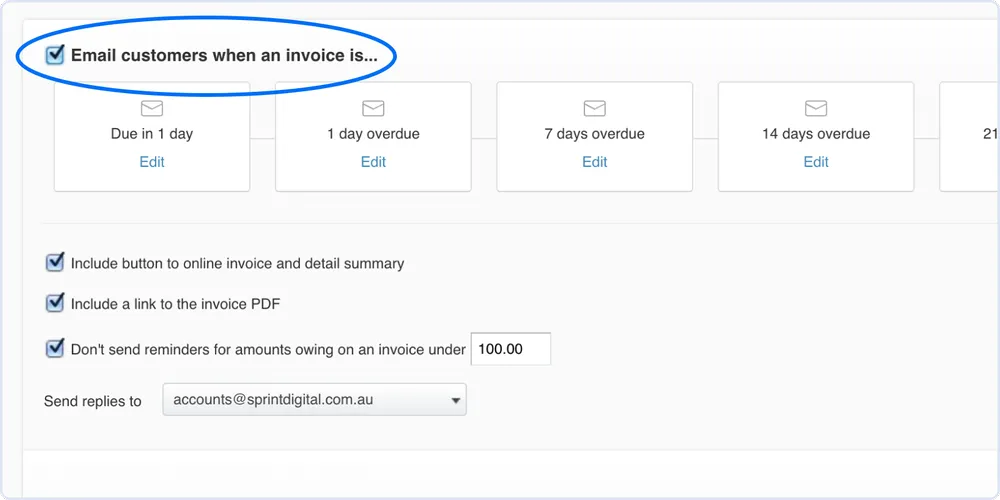
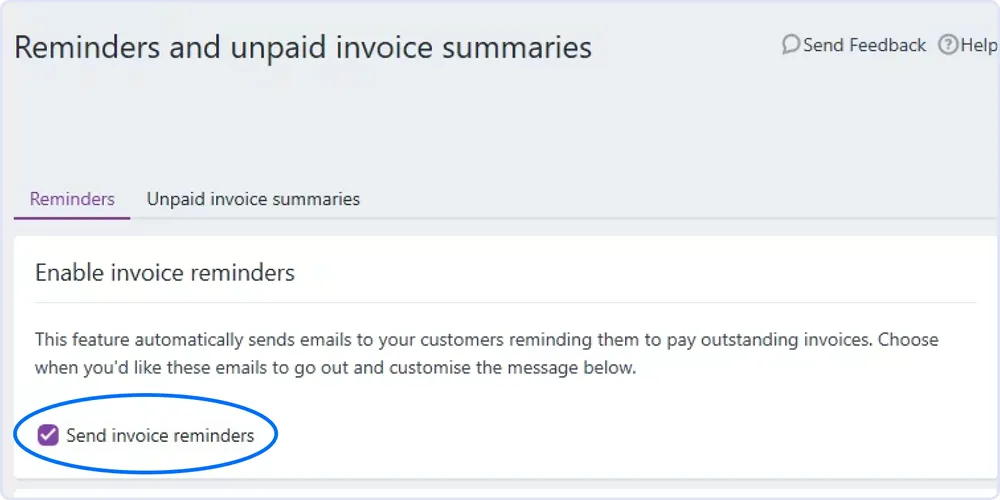
Section titled “Connected Xero or MYOB? Turn their reminders off”Sawfish takes care of invoice reminders for you - leaving your accounting system’s own reminders on means your customers get chased twice. Do this now, while you’re thinking about it:
Xero - in your invoice reminder settings, untick “Email customers when an invoice is…” to switch automatic reminders off.
MYOB - open Reminders and unpaid invoice summaries and turn off Send invoice reminders.
Step 3 - Company information
Section titled “Step 3 - Company information”Enter your business details:
- Display name - how your business appears inside Sawfish and on communications to customers.
- Legal/trading name and ABN - start typing your ABN or business name and Sawfish looks it up in the Australian Business Register, filling in the legal details for you.
- Company email and phone - the contact details shown to your customers on invoices and emails.
Step 4 - Payment settings
Section titled “Step 4 - Payment settings”Set up how you get paid:
- Payout bank account - the account your funds settle into (account name, BSB, account number).
- Payment methods - which options your customers can use to pay (credit card, Apple Pay and Google Pay, PayID, PayTo, bank transfer).
- Processing fees - the rate you’re charged for each payment type is shown here. Surcharging is switched off across Sawfish, so these come out of your settlement rather than being added to what your customer pays. See Fees and payment method controls.
You can change all of this later under Settings.
Verify your identity
Section titled “Verify your identity”Before payments can be set up, Sawfish verifies the account holder’s identity and confirms you’re authorised to act for your organisation. You’ll need a photo ID (driver licence or passport) and about two minutes - the check runs right in the onboarding flow.
Once your ID is verified, Sawfish matches you against the business register for your ABN. Most of the time that’s automatic. Where the register can’t confirm you, there are a couple of extra paths:
- Trusts - enter the ABN of your corporate trustee and Sawfish re-checks against it, or upload your trust deed for our team to review.
- Partnerships - partnerships aren’t on the public register, so upload your partnership agreement and our team confirms your authorisation from it.
- Declaration - if none of the above fits (for example, the register lists your name differently), make a signed authorisation declaration and continue; our team reviews it afterwards.
After onboarding
Section titled “After onboarding”When onboarding is complete you’ll land on your dashboard. Run through the setup checklist to make sure everything’s in place - including the reminder switch-off above if you skipped it.