

What Your Customer Sees
Every invoice email links to a public invoice page. No login, no account - just the invoice and the ways to pay it, under your branding.
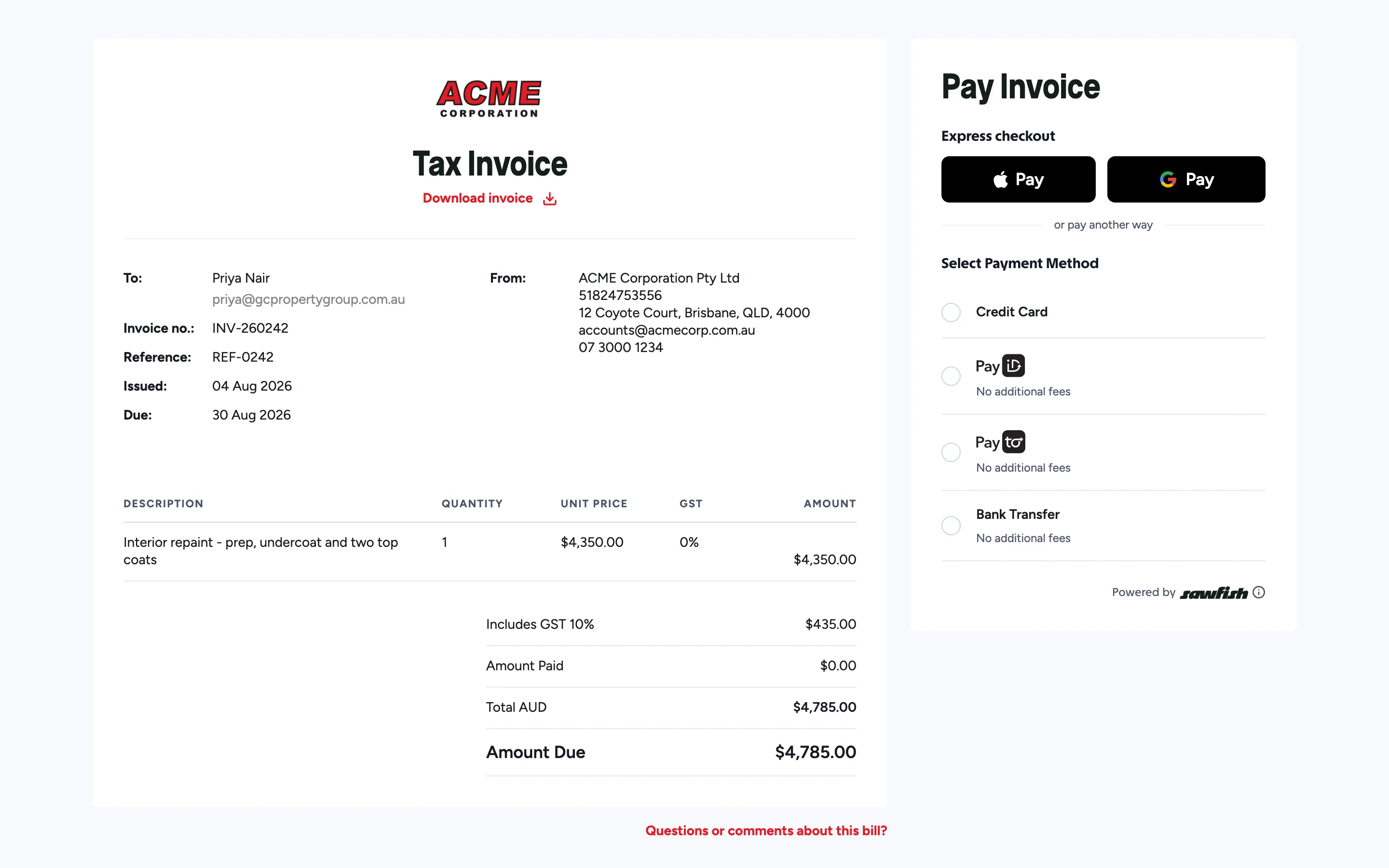
The invoice
Section titled “The invoice”The left side is the tax invoice itself: your logo, both parties’ details, line items, GST, amount paid so far, and amount due - plus Download invoice for a PDF copy.
The Pay Invoice panel
Section titled “The Pay Invoice panel”The right side lists every payment method you’ve enabled:
- Express checkout - Apple Pay and Google Pay, one touch on supported devices.
- Credit Card - hosted card fields.
- PayID - Sawfish shows the PayID and amount; the customer pays from their own banking app, and the page confirms in real time.
- PayTo - the customer approves a payment agreement with their bank.
- Bank Transfer - your account details with the invoice reference.
No method adds a fee. Whichever one they choose, the customer pays the invoice amount and nothing more - see Fees and payment method controls.
Questions about the bill
Section titled “Questions about the bill”The “Questions or comments about this bill?” link at the bottom lets the customer raise an invoice enquiry - it lands at your reply-to email.
After payment
Section titled “After payment”The page confirms the payment, the invoice flips to paid across Sawfish and your accounting system, and the customer gets an invoice-paid notification if you’ve enabled it.