

Client Self-Onboarding
Instead of chasing a client for their details, invite them to confirm everything themselves. They complete a guided online form; you review what changed and approve it.
Sending an invitation
Section titled “Sending an invitation”Open the client’s record - the Client Onboarding Invitation banner sits at the top.
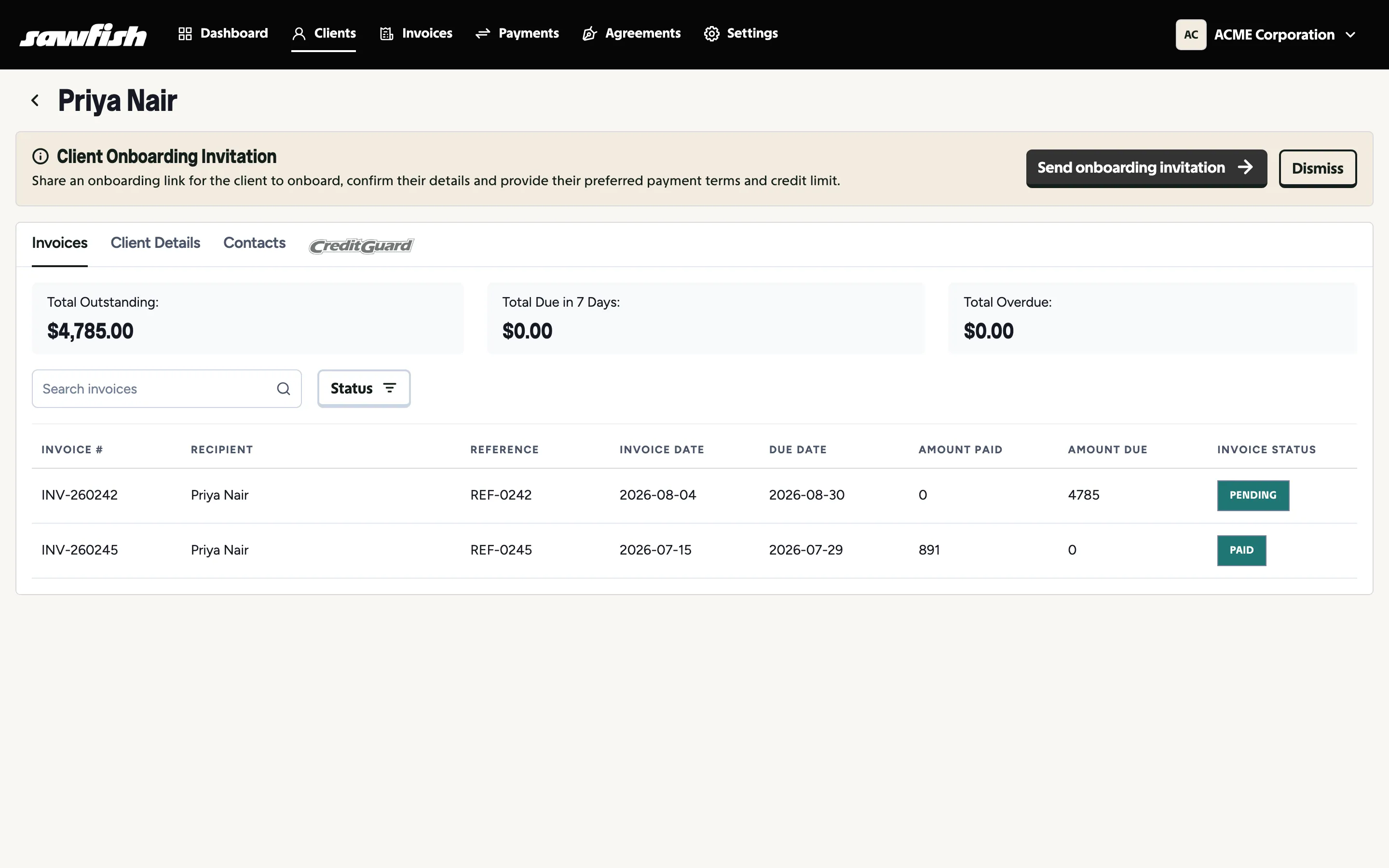
Click Send onboarding invitation. The client receives a secure link to a guided form covering:
- Their organisation details - legal name, ABN, address, and contact information
- Additional contacts they’d like included
- Their requested payment terms and credit limit
Dismiss hides the banner for this client if you don’t plan to use self-onboarding with them.
Reviewing a submission
Section titled “Reviewing a submission”When the client submits:
- You’re notified, and the client appears in the Pending Client Onboarding widget on your dashboard.
- Open the submission to see the client’s answers side by side against your current record - exactly what would change is highlighted.
- Approve to apply the changes to the client record, or edit before applying.
Both you and the client receive confirmation once onboarding is complete.
Tracking outstanding invitations
Section titled “Tracking outstanding invitations”- The dashboard’s Pending Client Onboarding widget lists invitations still outstanding and submissions awaiting your review.
- A banner on the client’s record shows when an invitation is still open.